Workflow Lifecycle
A workflow in KubeOrch represents a complete Kubernetes application topology — the set of resources, their configurations, and the connections between them.
Workflow States
Section titled “Workflow States”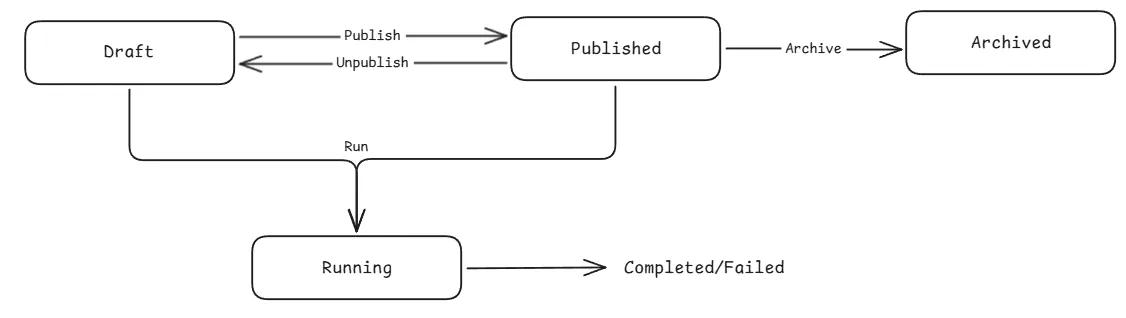
- Draft — Initial state. Workflow is being designed on the canvas.
- Published — Workflow is finalized and ready for deployment.
- Archived — Workflow is no longer active but preserved for reference.
Step-by-Step Lifecycle
Section titled “Step-by-Step Lifecycle”1. Create
Section titled “1. Create”A new workflow requires a name and a target cluster. The cluster determines where resources will be deployed.
POST /v1/api/workflows{ "name": "My Web App", "cluster_id": "production-cluster"}2. Design (Canvas)
Section titled “2. Design (Canvas)”On the visual canvas, users:
- Add nodes from the Command Palette (Cmd+K) or by dragging from the sidebar
- Configure nodes by clicking them to open the settings panel
- Connect nodes by drawing edges between ports (e.g., Service → Deployment, Ingress → Service)
- Auto-save — changes are debounced and saved automatically
3. Save
Section titled “3. Save”Saving persists the current canvas state (nodes + edges) to the database without creating a version snapshot:
POST /v1/api/workflows/:id/save{ "nodes": [...], "edges": [...]}4. Run (Deploy)
Section titled “4. Run (Deploy)”Running a workflow:
- Creates a version snapshot — captures current nodes/edges as a numbered version
- Executes the workflow — processes each node and applies resources to Kubernetes
- Starts watchers — monitors deployed resources for status changes
- Streams status — sends real-time updates via SSE
POST /v1/api/workflows/:id/run{ "trigger_data": {}}The response includes a run_id for tracking the execution.
5. Monitor
Section titled “5. Monitor”During and after deployment, users can:
- Watch node status on the canvas (green = healthy, yellow = partial, red = error)
- Stream pod logs in the mini-logs panel or resource detail page
- Open a terminal into running containers via the WebSocket terminal
- View diagnostics for failing nodes with suggested auto-fixes
6. Version & Iterate
Section titled “6. Version & Iterate”Every run creates an automatic version. Users can also create manual versions with tags and descriptions.
Key version operations:
- List versions — paginated history of all versions
- Compare versions — side-by-side diff showing added, removed, and modified nodes/edges
- Restore version — roll back to a previous version (creates a new version from old state)
Edge Semantics
Section titled “Edge Semantics”Edges (connections between nodes) carry semantic meaning:
| Source Node | Target Node | Edge Meaning |
|---|---|---|
| Service | Deployment | Service routes traffic to this Deployment’s pods |
| Ingress | Service | Ingress path forwards to this Service |
| HPA | Deployment/StatefulSet | HPA scales this workload |
| ConfigMap | Deployment/StatefulSet | ConfigMap is volume-mounted into containers |
| Secret | Deployment/StatefulSet | Secret is volume-mounted into containers |
| PVC | Deployment/StatefulSet | PVC is volume-mounted for persistent storage |
| NetworkPolicy | Any workload | Policy applies to this workload’s pods |
When an edge is drawn, the UI automatically updates the linked fields in the node data (e.g., _linkedDeployment, _linkedConfigMaps).
Run Execution Details
Section titled “Run Execution Details”A workflow run tracks:
| Field | Description |
|---|---|
status | running, completed, failed, cancelled |
version | Which version was deployed |
started_at | When execution began |
completed_at | When execution finished |
duration | Total execution time in milliseconds |
node_states | Per-node execution state and status |
logs | Execution log messages |
triggered_by | manual, schedule, or webhook |